
The safest installation is a reversible one. Start from a working base game, extract the pack, compare its structure with the official guide, place it in the documented content location, and test it before merging any large collection.
Prepare a clean, known-good game folder
Launch The Choicer Voicer before adding anything and complete a default recording. That single test proves the game, microphone, and playback path work. Copy any existing custom-content folder before changing it, especially when updating from an older release.
Download packs into a separate staging directory rather than extracting directly over the game. Scan the archive, review its readme, and check that it contains media and metadata appropriate to the pack type rather than an unexpected executable.
Install one pack using its documented structure
Follow the current official guide for the relevant content type, because voice, contestant, judge, studio, chatter, and dub packs do not all share the same internal fields. Preserve the top-level folder relationships supplied by the author instead of flattening every file into one directory.
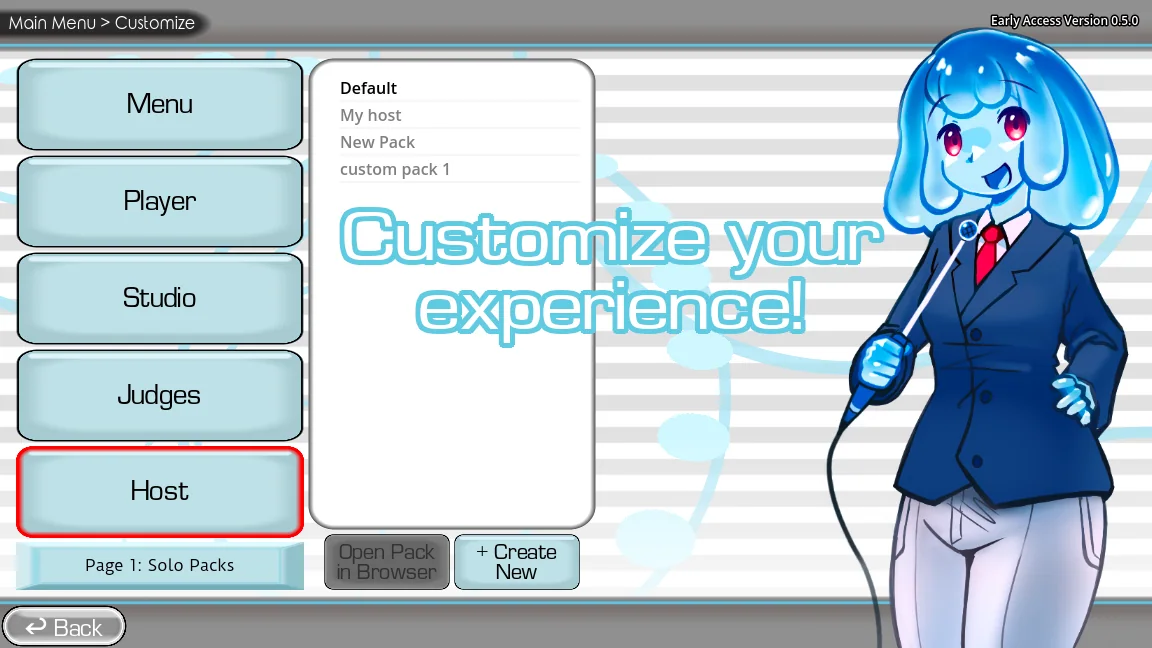
After placing the folder, reopen the game and look for the new option in its content selection interface. Test one prompt and remove the pack if errors begin immediately.
- Identify the pack type from its description and included readme.
- Compare its folder and metadata layout with the current official content guide.
- Copy the complete pack folder into the documented custom-content location.
- Restart the game, select the pack, and test one prompt plus playback.
- Record the pack name, source URL, author, and install date in a small inventory.
Fix a pack that does not appear
A missing pack is often one folder too deep after extraction, missing required metadata, placed under the wrong pack category, or built for a different version. Compare its top level with a working pack and the official guide rather than randomly renaming files.
If the game stops launching, remove only the most recent pack and test again. Do not delete your full collection during diagnosis; a staged, one-at-a-time install gives you a clear rollback point.
| Problem | Check first |
|---|---|
| Pack not listed | Folder depth, category, metadata, and game version |
| Pack listed but silent | Media filenames, formats, and extraction completeness |
| Game fails after install | Remove the newest pack and return to the clean baseline |
| Several packs conflict | Restore separate folders and add them back individually |
Common questions
Why is my Choicer Voicer pack not showing up?
Check for an extra nested folder, missing metadata, the wrong pack category, or a format written for another game version. Compare it with the current official guide.
Can I install a whole modpack at once?
You can, but it makes troubleshooting harder. A safer first run is one pack at a time with a clean baseline and an inventory of sources.
Sources
- Voice Pack GuideYeahMaybe
- The Choicer Voicer official guide siteYeahMaybe
- Voice Packs for The Choicer VoicerGameBanana
Keep going
Choicer Voicer Packs: Voice Packs and Dub Packs
Find Choicer Voicer voice packs and dub packs from official and community sources, compare pack types, and install downloads without overwriting your game.
Read guideChoicer Voicer Mods and GameBanana Packs
Browse Choicer Voicer GameBanana packs more safely, read version and author details, scan archives, preserve credits, and recover from conflicts.
Read guideChoicer Voicer Cannot Hear Playback
Fix silent prompt audio or recorded playback by separating microphone capture from speaker output, checking mixers, devices, Bluetooth, and pack files.
Read guide