
Start with the free No Gameplay Demo and a system recording test, then confirm the input selected inside the game. The store recommends 0.5.3, while the 0.5.2 release documents a surround-sound recording workaround that helped many players without guaranteeing compatibility for every setup.
Trusted starting points
Open the official and community resources used for this answer.
Find out whether the system can hear you
Before changing game files, use the operating system's recorder or input meter. Speak at a normal distance and listen to the result. If the system tool is also silent, the problem is outside The Choicer Voicer and reinstalling packs will not help.
Check the physical mute switch, cable, USB connection, wireless headset profile, and system input level. Close conferencing software that may hold the device, then reconnect it before launching the game again.
- Record ten seconds in the operating system's built-in voice recorder.
- Select the intended input device and raise its level without clipping.
- Allow desktop applications to access the microphone in system privacy settings.
- Close other audio applications, restart the game, and make one default-content recording.
Check the game's selected input and playback path
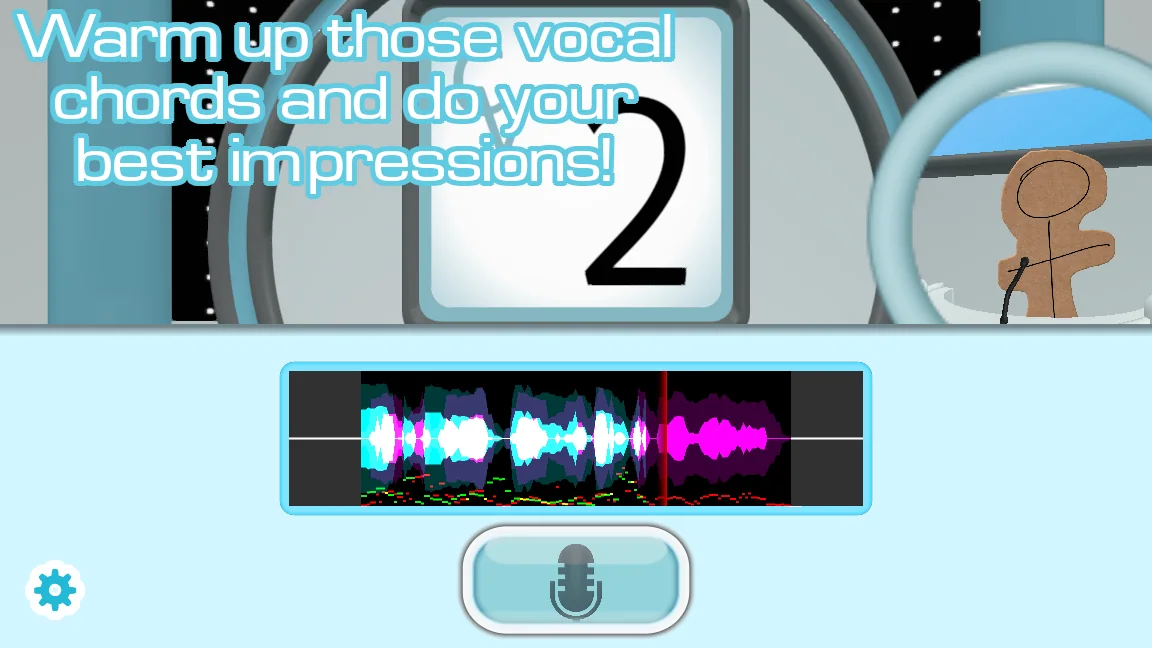
A computer can expose several inputs with similar names: a webcam microphone, headset hands-free channel, virtual cable, controller mic, and the device you actually want. Select the active input in the game and watch for a waveform while speaking.
If the waveform appears but you hear nothing, the microphone probably worked and the fault moved to output playback. Check the default speakers, mixer volume, and whether a Bluetooth headset switched profiles during recording.
| Symptom | Most useful next check |
|---|---|
| No waveform and no playback | System mic permission, device choice, mute, and input level |
| Waveform exists but playback is silent | Output device, app mixer, and headset profile |
| Recording is distorted | Lower input gain and move farther from the microphone |
| Only the game fails | Exact build label, game input choice, and the official demo |
Compare 0.5.3 with older microphone reports carefully
The purchase list checked on September 1 marks 0.5.3 as Recommended for Windows and Linux. The 0.5.2 release post says a custom workaround fixed a specific failure where surround-sound outputs disrupted recording for many players. The official store nevertheless continues to warn that some microphone setups still cannot record.
Version 0.5.3 focuses on Dub Mode progress preservation and related fixes, not a universal microphone repair. Back up custom content, reproduce the problem with the free demo or default content, and record the exact filename from your itch.io library. If behavior differs by version, report the operating system, microphone model, channel setup, and build label.
Common questions
Why does Choicer Voicer record silence?
The common causes are the wrong input, system privacy blocking desktop apps, a muted or busy device, or the reported game-specific bug. Test the microphone outside the game first.
Does Choicer Voicer 0.5.3 fix every microphone?
No. The 0.5.2 workaround helped many surround-sound users, but the store still warns that some setups fail. Test the free demo, note the exact build, and keep any known-good installation separate.
Why can I see a waveform but hear no playback?
A visible waveform suggests recording occurred. Check the selected speakers, operating-system mixer, Bluetooth audio profile, and the separate playback troubleshooting guide.
Sources
- The Choicer Voicer by YeahMaybeYeahMaybe on itch.io
- Version 0.5.2 released (and I forgot to post that sooner)YeahMaybe on itch.io
- Version 0.5.3 released - Dub preservation updateYeahMaybe on itch.io
- Possible mic bug fix available, please test itYeahMaybe on itch.io
- Choicer Voicer mic and sound issues discussionr/Vinesauce
Keep going
Choicer Voicer Cannot Hear Playback
Fix silent prompt audio or recorded playback by separating microphone capture from speaker output, checking mixers, devices, Bluetooth, and pack files.
Read guideThe Choicer Voicer Latest Version
The official store recommends Choicer Voicer 0.5.3 for Windows and Linux. See its Dub Mode recovery changes, older files, and update route.
Read guideOfficial Choicer Voicer Download Guide
Download The Choicer Voicer safely from YeahMaybe on itch.io, choose the recommended 0.5.3 Windows or Linux build, and keep older versions separate.
Read guide