
Recording and playback are separate paths. If a waveform appears, focus on the output device and mixer; if prompts from one custom pack are silent but default content works, inspect that pack's audio files and metadata instead.
Separate recording from listening
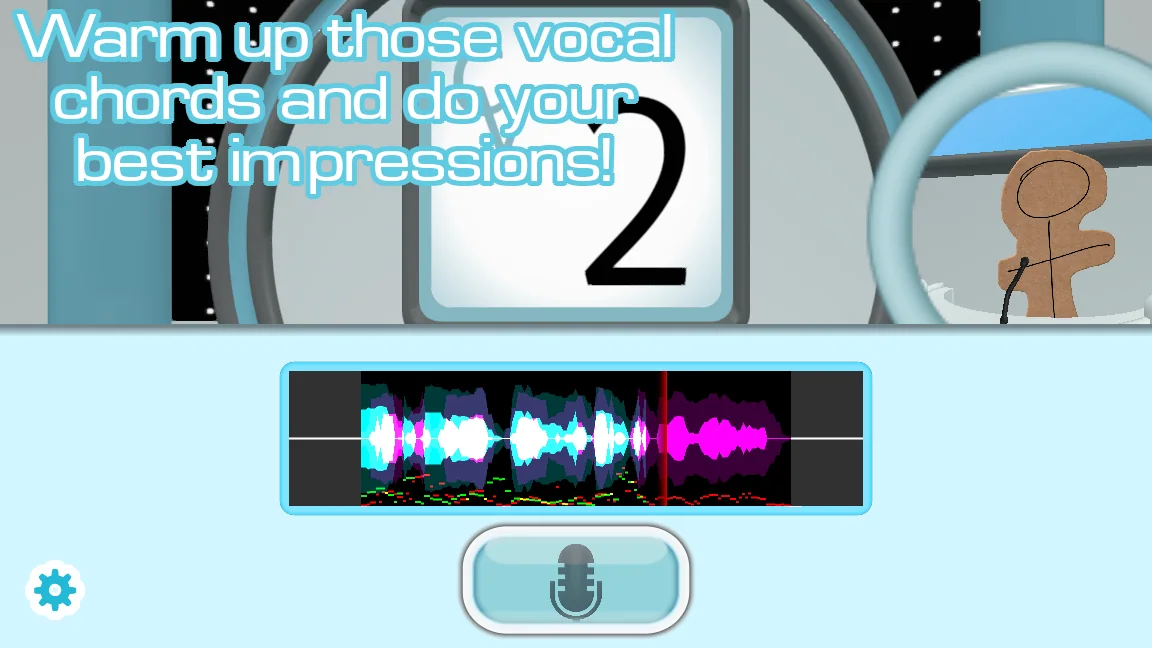
A silent result can come from either side of the audio chain. If the game draws a waveform while you speak, it likely received samples from the microphone. The next test is whether another application can play sound through the same speakers or headset.
If there is no waveform, return to microphone permissions and input selection. If there is a waveform and other apps are also silent, fix the operating system output before editing game or pack files.
- Play a system sound or local music file through the intended output device.
- Open the app volume mixer and make sure the game is not muted or routed elsewhere.
- Reconnect Bluetooth or USB audio, then relaunch the game after the device is ready.
- Test one built-in prompt and one fresh recording before enabling custom content.
Watch for device switching and audio profiles
Bluetooth headsets often expose a high-quality stereo output and a lower-bandwidth hands-free profile used with the microphone. Starting a recording can switch profiles or change the default route, leaving the game playing into an output you are not monitoring.
A USB interface can create the same confusion if Windows or Linux sees multiple channels. Choose one stable input and output pair, avoid disconnecting it mid-session, and launch the game only after the devices appear in system settings.
Decide whether a custom pack is responsible
When default prompts and recordings play correctly but one pack is silent, the base audio system is probably healthy. Check whether the pack archive was fully extracted, whether its filenames match the metadata, and whether its audio format follows the current official content guide.
Add packs one at a time and keep their folders separate. A large merged collection makes it difficult to identify a missing file or incompatible structure, especially after a game version changes the expected format.
| Test result | Likely area |
|---|---|
| All apps silent | Operating system output or hardware |
| Only the game silent | Game route, mixer, or build |
| Only one pack silent | Pack file, path, format, or metadata |
| Prompt audible, recording silent | Microphone capture rather than playback |
Common questions
Why can I see my recording but not hear it?
A waveform suggests the input worked. Check the selected speakers, operating-system mixer, Bluetooth profile, and whether the game launched before the output device was connected.
Why is only one voice pack silent?
That points toward an incomplete extraction, unsupported audio format, filename mismatch, or metadata problem in the pack. Compare it with the current official pack guide.
Sources
- The Choicer Voicer official guide siteYeahMaybe
- Voice Pack GuideYeahMaybe
- Choicer Voicer mic and sound issues discussionr/Vinesauce
Keep going
Choicer Voicer Microphone Not Working
Fix silent recordings, wrong input devices, Windows and Linux permissions, and version-specific mic problems using the demo and current official files.
Read guideHow to Install Choicer Voicer Voice Packs
Install Choicer Voicer packs with a reversible workflow: inspect archives, keep pack folders intact, test one at a time, and diagnose missing content.
Read guideThe Choicer Voicer Demo and Microphone Test
Use the official Choicer Voicer No Gameplay Demo to check recording and playback, then test the recommended 0.5.3 build with the same audio route.
Read guide